
To turn off an eSIM on iPhone, go to Settings > Cellular, tap the eSIM line, and switch off Turn On This Line. The eSIM stays installed. It just stops connecting to a network until you switch it back on. Don’t tap Delete eSIM unless you want to remove the plan for good, because getting it back usually means a new QR code or a call to your carrier.
This works the same way on iOS 26 and iOS 27. Outside the US, “Cellular” may be called Mobile Service or Mobile Data.
How to turn off an eSIM on iPhone: step by step
Before you start, check which line is which. If you have a home number and one or more travel eSIMs, the labels (“Primary”, “Travel”, “Business”, or a country name) are how you tell them apart.
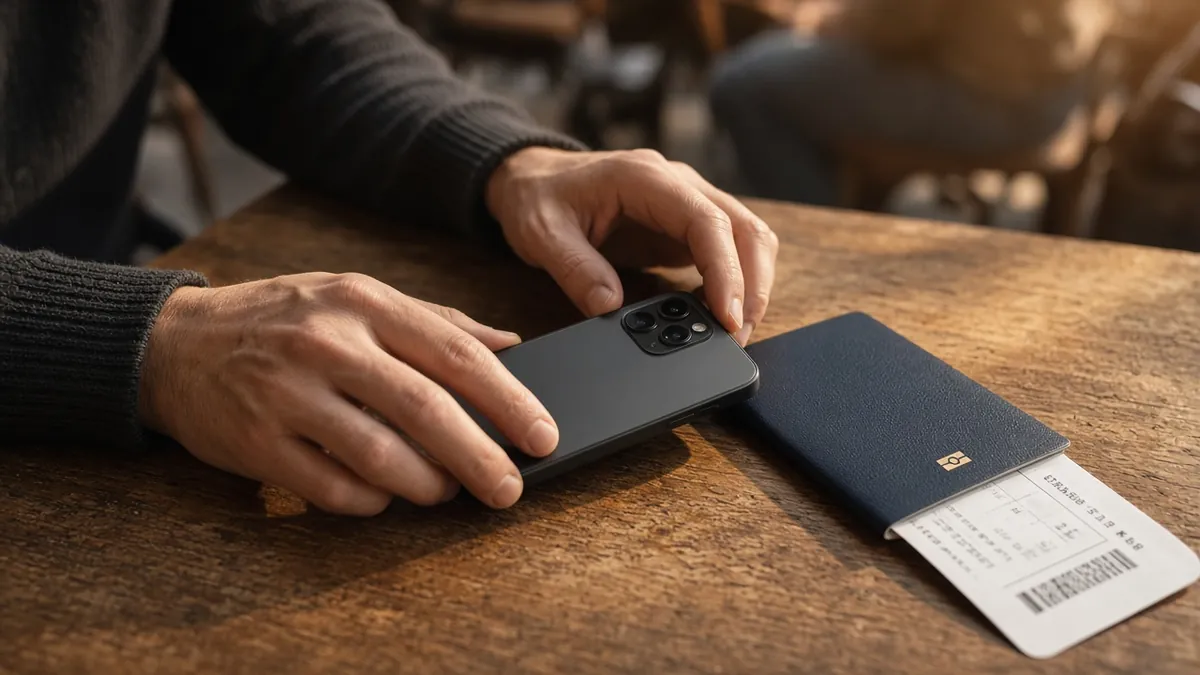
Step 1: Open Settings > Cellular
Open the Settings app and tap Cellular (or Mobile Service / Mobile Data, depending on region). Your lines are listed under SIMs.
Step 2: Tap the eSIM line you want to turn off
Tap the line you want to pause. Check the label and phone number at the top of the screen so you don’t switch off your main number by mistake.
Step 3: Switch off “Turn On This Line”
Turn the Turn On This Line toggle off. The line is now disabled:
- Its signal bars disappear from the status bar and Control Center.
- It won’t make or receive calls, texts or data. Calls to that number typically go to voicemail if your carrier offers it.
- The eSIM profile stays on the iPhone and still shows in the list, so you can turn it back on later.
Tip: If the eSIM you’re turning off was your Cellular Data line, go back to Settings > Cellular > Cellular Data and choose the line you want to use for internet. Otherwise you may only have data on Wi-Fi.
Turn off vs. delete an eSIM: what’s the difference?
| Turn off the line | Delete eSIM | |
|---|---|---|
| eSIM profile stays on iPhone | Yes | No |
| Reversible from Settings | Yes, flip the toggle back on | No. You usually need a new QR code, activation link or carrier help |
| Stops calls, texts and data on that line | Yes | Yes |
| Cancels your plan or billing | No | No (cancel with the carrier or provider) |
| Best for | Pausing a line between trips or during part of a trip | A finished plan you’ll never use again, or when the carrier tells you to |
If you’ve decided to remove the eSIM permanently, follow our guide on how to remove an eSIM from iPhone. It covers the Delete eSIM option and what to do if it’s missing.
How to turn an eSIM back on on iPhone
- Go to Settings > Cellular.
- Tap the eSIM line (it’s still listed under SIMs).
- Switch on Turn On This Line.
- Give it a few seconds to register on a network. If you want this line to carry internet, also go to Cellular Data and select it.
If you’re turning a travel eSIM back on abroad, also check the provider’s instructions for Data Roaming on that line. Many travel eSIMs need it turned on. If the line comes back on but shows No Service, see our eSIM not working troubleshooting guide before deleting anything.
How to switch which eSIM uses mobile data (without turning a line off)
You don’t have to turn a line off to stop it using data. On iPhone models with Dual SIM you can keep two lines on at once (for example, your home number for calls and texts and a travel eSIM for data):
- Settings > Cellular > Cellular Data: pick the line that should carry internet.
- Turn Allow Cellular Data Switching off if you don’t want the iPhone to fall back to the other line’s data (useful abroad, where your home line’s data could mean roaming charges).
- Settings > Cellular > Default Voice Line: pick the number used for calls by default.
You can store more eSIMs than you can use at once, but only two lines can be on at the same time. See how many eSIMs an iPhone 17 can have.
How to deactivate an eSIM on iPhone: pause or cancel?
“Deactivate” can mean two different things:
- Pause the line on this iPhone. Turn off Turn On This Line (steps above). Reversible, and the profile stays.
- End the plan or number. That’s a carrier or provider action. Turning the line off or deleting the eSIM does not cancel a subscription or auto-renewal. Cancel in your carrier’s or travel eSIM provider’s account.
Also, turning off a travel eSIM does not necessarily pause its validity period. Many prepaid travel plans keep counting down once activated, whether the line is on or off. Check the plan’s terms in the provider app.
Turning off a travel eSIM after your trip
With iOS 26 and later, iPhone can manage travel eSIMs for you in some countries and regions. When you arrive, you may get a Turn On Travel eSIM notification that lets you choose Travel eSIM Only or Travel eSIM and Current eSIM. When you get home, the iPhone may automatically turn off the travel eSIM and turn your home SIM back on.
If that doesn’t happen, Apple recommends doing it manually:
- Open Settings > Cellular.
- Make sure Turn On This Line is on for your home (primary) line.
- Turn off any travel eSIM lines you no longer need.
- Check Cellular Data is set to your home line.
Keep the travel eSIM installed (just turned off) if you might top it up for another trip. Delete it only once the plan has expired and you’re sure you won’t reuse it. For the full travel setup, see how to use an eSIM for travel.
How to turn off an eSIM on Android
If you searched “how to turn off eSIM” from an Android phone, the idea is the same: disable the line, don’t delete it.
- Samsung Galaxy: Settings > Connections > SIM manager, then tap the switch next to the eSIM to disable it.
- Google Pixel: Settings > Network & internet > SIMs, tap the eSIM, then turn off Use SIM.
Menu names vary by manufacturer and Android version. To remove the eSIM from an Android phone completely, see how to remove an eSIM from Android.
What if there’s no option to turn off the eSIM?
- You’re on the wrong screen. The toggle is inside the individual line (Settings > Cellular > tap the line), not on the Cellular Data screen.
- The line label isn’t what you expect. Carriers sometimes name lines “Primary” or “Secondary” instead of the carrier name. Tap each line and check the number shown.
- The phone is managed. Work or school iPhones with a device management (MDM) profile can lock cellular settings. Ask your IT admin.
- The eSIM isn’t fully installed or provisioned. If the line shows an error like SIM Not Provisioned, see what “eSIM not provisioned” means.
- Still stuck? Restart the iPhone, update iOS (Settings > General > Software Update), then contact the carrier or provider.
FAQ
How do I turn off an eSIM on iPhone without deleting it?
Go to Settings > Cellular, tap the eSIM line and switch off Turn On This Line. The profile stays on your iPhone and you can switch it back on at any time. Don’t tap Delete eSIM.
How do I deactivate an eSIM on iPhone?
To pause it on the phone, switch off Turn On This Line for that eSIM in Settings > Cellular. To end the plan or stop billing, cancel with your carrier or eSIM provider. Turning the line off or deleting the eSIM doesn’t cancel the plan.
How do I turn an eSIM back on on iPhone?
Settings > Cellular > tap the eSIM > switch on Turn On This Line. If you want it to carry data, also select it under Cellular Data, and turn on Data Roaming for that line if you’re abroad and the provider requires it.
Is turning off an eSIM the same as deleting it?
No. Turning off is reversible and keeps the eSIM profile on the iPhone. Deleting removes the profile, and reinstalling it usually needs a new QR code or help from the carrier.
Will I still get calls and texts when my eSIM is turned off?
No, not on that line. A turned-off line can’t receive calls or SMS. Callers usually reach voicemail if your carrier provides it. iMessage and FaceTime can keep working over Wi-Fi or your other line.
Does turning off a travel eSIM stop it expiring?
Not necessarily. Many travel eSIM plans keep counting down after activation even when the line is off. Check the validity rules in your provider’s app or terms.
Should I turn off my travel eSIM when I get home?
Yes. Turn it off (or let iOS 26+ do it automatically where supported) so your home line is back as the primary line for calls and data. Keep it installed if you might reuse or top it up.
Why is there no option to delete or turn off my eSIM on iPhone?
Check that you’re inside the line’s own settings, not the Cellular Data screen. A managed (work or school) iPhone may block changes. An eSIM that didn’t finish installing may also behave oddly. Restart, update iOS, then contact the carrier.
Related guides
- How to remove an eSIM from iPhone: permanent removal
- eSIM not working? Fixes in the right order
- How to check your eSIM data usage
- How to install and activate an eSIM
- Can an eSIM receive SMS?
Sources
- Apple iPhone User Guide: Use Dual SIM on iPhone (iOS 26): Turn On This Line, Cellular Data, Allow Cellular Data Switching. https://support.apple.com/guide/iphone/use-dual-sim-iph9c5776d3c/ios
- Apple Support: Use eSIM while traveling internationally with your iPhone (iOS 26 travel eSIM prompts and automatic turn-off). https://support.apple.com/en-us/118227
- Samsung US: SIM cards for your Galaxy phone or tablet (SIM manager switches). https://www.samsung.com/us/support/answer/ANS10001619/