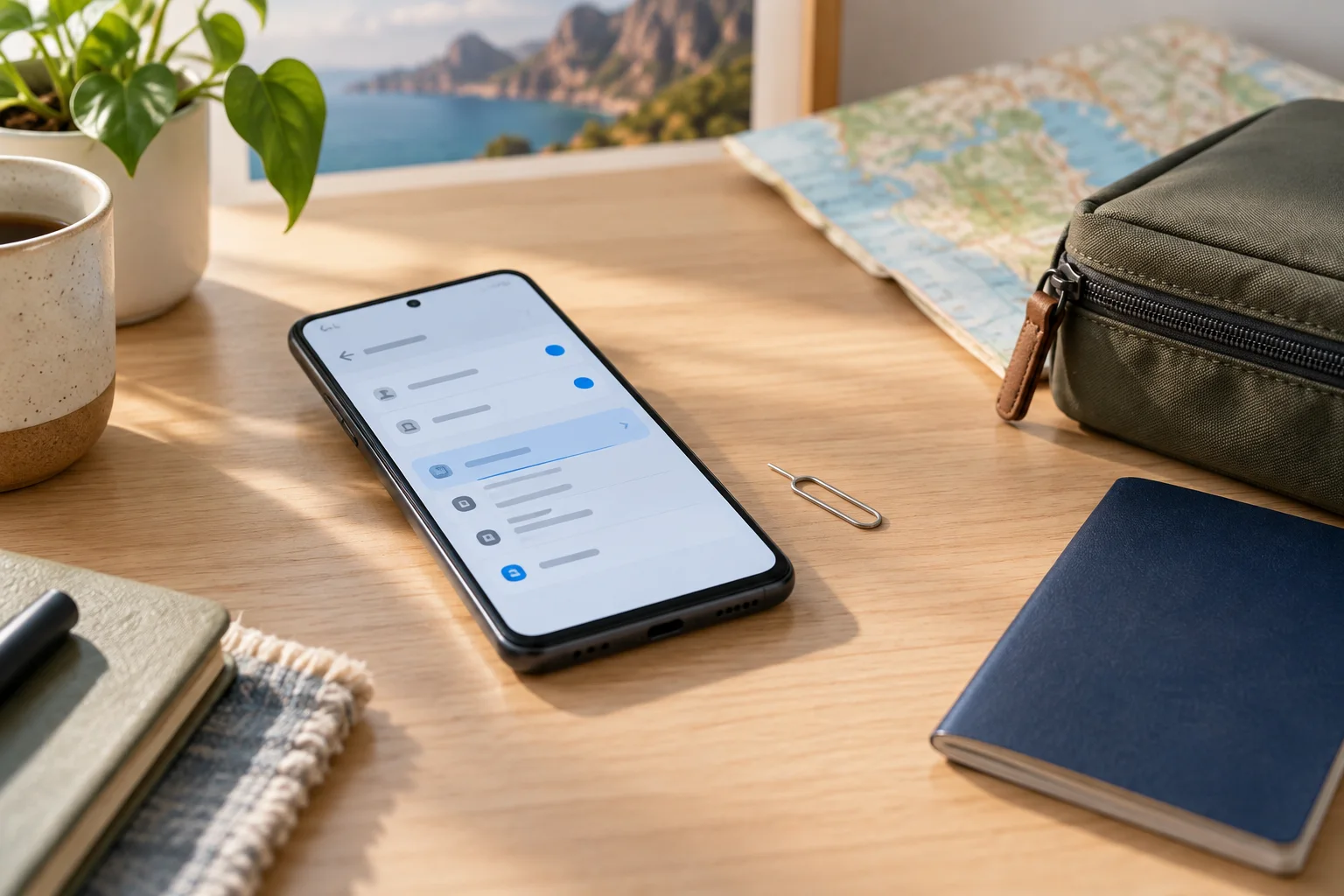
How to remove an eSIM from Android safely starts with deciding whether you need to pause a line or erase its profile. If you searched how to delete an eSIM from Android, first confirm which line you are touching and whether the plan can be reissued. Make the change while you still have Wi‑Fi.
Connect to Wi‑Fi, identify the exact eSIM and save its number, activation email and recovery details. On Pixel, open Settings → Network & internet → Mobile network or SIMs and select the eSIM. On Samsung Galaxy, use Settings → Connections → SIM manager. Turn the line off if you want a reversible pause; choose Erase eSIM, Remove or Delete eSIM only when you are ready to remove the profile.
Remove the eSIM profile on Android: turn it off or delete it?
People use “remove eSIM profile Android” to describe two different actions. Turning off a line stops it from connecting but leaves the profile on the phone. Deleting or erasing it removes the profile from the phone. The third action, cancelling a plan, belongs to the provider account and is separate from either phone setting.
| Action | What changes on the phone? | Use it when |
|---|---|---|
| Turn off the line | The profile stays installed and can usually be enabled again. | You are between destinations, troubleshooting or keeping a plan for later. |
| Delete or erase eSIM | The profile is removed; the line cannot connect from this phone. | The plan is finished and you have confirmed you will not need it again. |
| Cancel the plan | A provider-account action, not a phone setting. | The provider's own terms say cancellation is required. |
Deleting may make a one-time QR code unusable, while turning off the line is reversible. A search for “delete eSIM Android” should end at the individual line's management screen, not a network reset or factory reset.
Before you remove an Android eSIM
Do these checks while the phone still has Wi‑Fi or another working line.
- Identify the line: open the SIM list and check the label, carrier and phone number. If you have several profiles, rename the line first.
- Confirm it is not active: check whether it still has data, a usable number, verification messages or destination coverage. Do not delete the line carrying your current mobile data.
- Save a recovery route: keep the provider email, account access and reissue instructions. Treat the QR code and activation code as private; do not assume the original can be reused.
- Back up separately: back up personal data, but do not assume an Android or Google backup will recreate the eSIM profile. The profile may need a fresh provider download.
- Plan the next connection: keep Wi‑Fi available and know which remaining SIM will handle calls, texts and mobile data after removal.
If the eSIM is present but simply has no service, deletion is usually a poor first fix. Check the data SIM, coverage, roaming and network instructions in our eSIM troubleshooting guide before removing a profile you may still need.
Pixel, Samsung Galaxy and generic Android paths
Android menu names are not universal. The exact model, region, carrier and software version can change both the location and wording of the delete control.
| Phone family | Typical path | Removal wording to look for |
|---|---|---|
| Google Pixel | Settings → Network & internet → Mobile network or SIMs → select the eSIM | Erase eSIM; for a pause, Use this SIM. |
| Samsung Galaxy | Settings → Connections → SIM manager or SIM card manager → select the eSIM plan | Turn the plan off if prompted, then Remove. |
| Other Android | Settings search for eSIM, SIM manager or Mobile network | Erase, Remove, Delete eSIM or a similar line action. |
If your screen says Mobile network instead of SIMs, follow the closest route and open the individual eSIM card. A physical SIM is removed from its tray, not erased from this menu. Work phones may also hide controls under an organization policy.
How to delete an eSIM from Android step by step
Use these steps after the pre-removal checks. If you only want to stop service temporarily, complete step 3 with the line toggle and stop there.
Connect and open SIM settings
Join reliable Wi‑Fi, then open Settings and search for eSIM or SIM manager. Do not start with Reset network settings or a factory reset; those are different operations.
Select the exact eSIM
Tap the travel label or carrier name, then verify the number and status. If the phone lists several plans, stop and identify each one before changing anything.
Choose pause or removal
For a reversible pause, turn off Use this SIM, Turn on SIM or the equivalent line switch. For permanent device removal, choose Erase eSIM, Remove or Delete eSIM.
Read and confirm
Accept the warning only when the line is definitely the one you intend to erase. The phone may ask for your screen lock; that confirms the device action, not plan cancellation.
What happens after deleting the profile?
The eSIM line should disappear from the active SIM list or no longer be available as a selectable line. It will not receive calls or texts on this phone or provide mobile data. Your other SIM should remain unchanged, but Android may leave you with no mobile-data line if it was the only one.
Open the SIM settings again and confirm the intended remaining line is on and selected for mobile data. Test data only after checking the selected line. Deleting the profile from Android does not by itself cancel the plan, refund unused service or tell the provider to stop billing.
Can a deleted Android eSIM be recovered?
Sometimes, but recovery depends on the issuing provider. A QR code may be single-use, tied to the original device, or accepted again; the phone cannot tell you which rule applies. Ask about reinstallation or reissue before deleting a plan you may need again.
If you deleted the wrong line, connect to Wi‑Fi and stop scanning an old QR code. Identify its number or label, contact the carrier or provider and ask whether a replacement profile can be issued. Then use our Android eSIM installation guide for the setup sequence.
If Android will not remove the eSIM
Check that you selected an eSIM rather than a physical SIM, and disable the line first if Samsung requires that before Remove appears. Restart once, reconnect to Wi‑Fi and look again in the line's own menu.
If the profile is missing, the phone may not support that management action, the device may be carrier-managed, or a software update may have changed the label. Do not delete other lines or factory-reset the phone to force the menu. Record the model, Android version and any error message, then use the Android activation guide or the troubleshooting guide for the next diagnostic step.
Removing an Android eSIM FAQ
How do I remove an eSIM from Android?
Open the phone's SIM settings, select the exact eSIM line, and choose Erase eSIM, Remove or Delete eSIM. On Pixel, the route is usually Settings → Network & internet → Mobile network or SIMs; on Samsung Galaxy, it is Settings → Connections → SIM manager. Confirm only after saving recovery details.
Is turning off an Android eSIM the same as deleting it?
No. Turning off the line keeps the eSIM profile on the phone and is usually reversible. Erasing or removing the eSIM deletes the profile from the device and may require a new activation or reissue.
How do I remove an eSIM from a Google Pixel?
On a supported Pixel, open Settings → Network & internet → Mobile network or SIMs, select the eSIM, and choose Erase eSIM. To pause it instead, use the line control such as Use this SIM and leave the profile installed.
How do I remove an eSIM from a Samsung Galaxy?
On a supported Galaxy, open Settings → Connections → SIM manager or SIM card manager, select the eSIM plan, turn the plan off if prompted, and tap Remove. The exact label depends on the Galaxy model, region and software version.
Will deleting an eSIM cancel the mobile plan?
No. Deleting the profile removes it from the Android phone, but it does not by itself reliably cancel the provider account, contract or plan. Check the provider's own terms or support route separately.
Can I reinstall an eSIM after deleting it?
Sometimes, but it depends on the issuing provider. A QR code may be one-time, tied to the original device or still reusable, so ask for the reinstallation or reissue process before deleting a plan you may need again.
What should I do if I deleted the wrong Android eSIM?
Connect to Wi‑Fi, stop retrying an old QR code, identify the removed line and contact the issuing provider or carrier. Ask whether the profile can be reissued, then install the replacement only after you receive current instructions.
Traveler's takeaway: Turn the line off when you are unsure. Delete the profile only after confirming the active line, saving recovery details and knowing how your provider would reissue it.