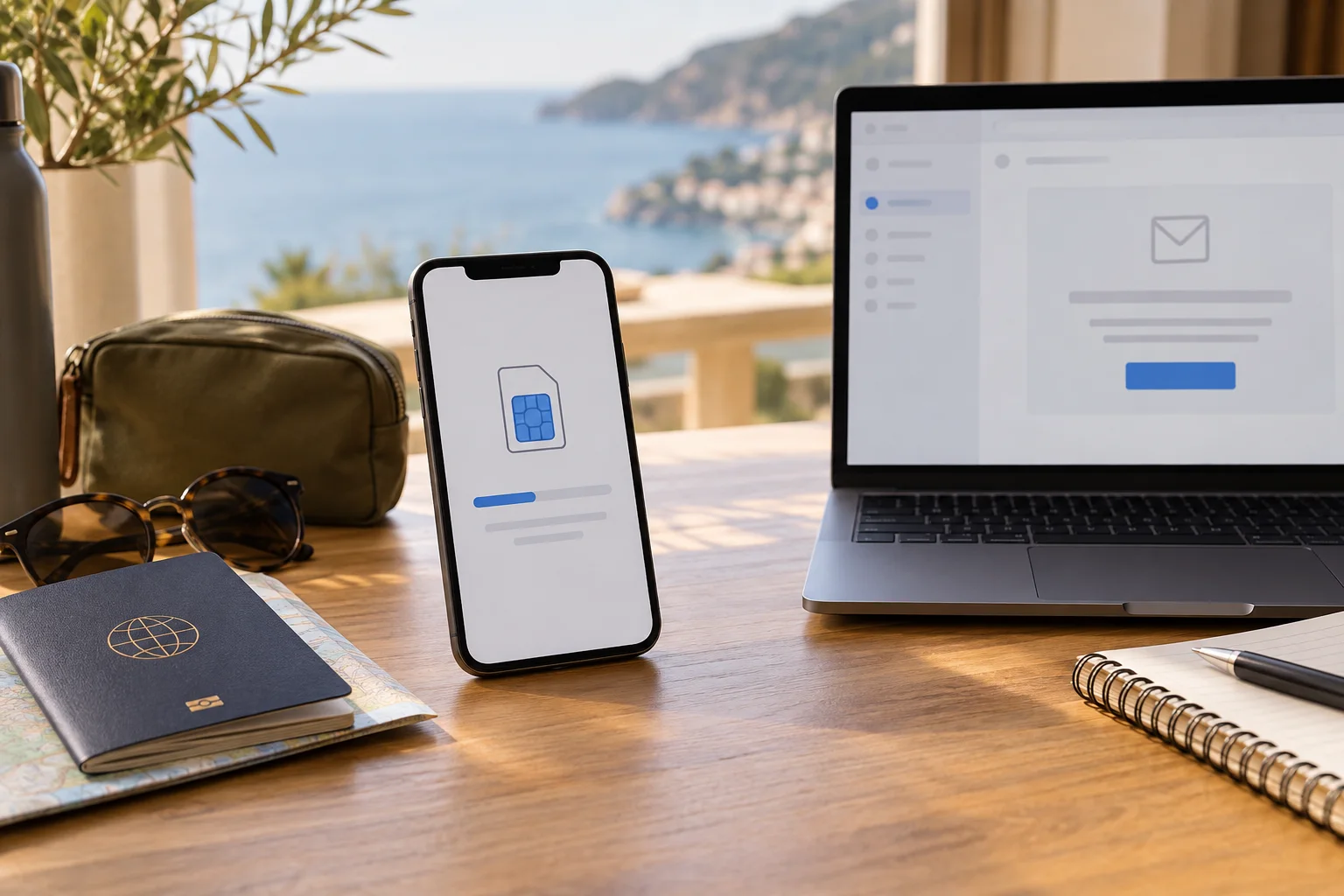
If you are searching for “how to get esim qr code,” start with the account or message that issued the plan. A travel eSIM QR code usually arrives in the purchase email, but it may instead live in an app, carrier account or travel eSIM dashboard. The code is a delivery method for the eSIM profile, not the plan itself. You need a compatible, unlocked phone and a reliable Wi‑Fi connection to use it. If the code is on the same phone, move it to another screen or use manual details. If it is missing, expired or already used, stop retrying and request help from the issuer.
Open the purchase email, issuer app, carrier account or travel dashboard and look for Install eSIM, QR code, activation or order details. Display the code on another screen, then open Add eSIM on the compatible, unlocked phone and scan it. If the code is unavailable or fails as one-time, expired or already used, do not delete a partly installed profile or buy a second plan first—ask the issuer for a replacement or reissue.
Where to find your eSIM QR code
The right place depends on who issued the line. Search for the plan's order, not a generic QR image: codes from different purchases are not interchangeable.
| Source | Where to look | What to expect |
|---|---|---|
| Purchase email | Order confirmation, delivery message, attachment or an Install eSIM button | The QR image may be embedded in the message, linked from a secure order page or accompanied by manual activation details. |
| Issuer app | My plans, Orders, Install eSIM, Manage line or a device setup screen | The app may install the profile directly and never show a reusable QR code. Follow the in-app route if that is the offered method. |
| Carrier account | SIM or line settings, eSIM replacement, device change or activation | Identity or account verification may be required. Carrier QR codes can be tied to your number, account and a particular reissue. |
| Travel dashboard | Your trip, order number, plan details or Download eSIM page | Look for the destination-specific plan and its QR/manual details. Do not mix codes from separate orders. |
How to get QR code for eSIM when the email is missing
Missing delivery is usually an account-retrieval problem, not a phone problem. Work through these checks in order:
Search every likely inbox
Search for the issuer name, order number, eSIM, QR, activation or install. Check spam, promotions, archives and the second address used at checkout. If someone else bought the plan, ask them to forward the message privately.
Open the original account or app
Use the login used to buy the plan and look under Orders, My eSIMs, Manage line or Install. Use only the account's normal password-reset route.
Ask for recovery
Contact the issuer through a verified support channel and ask whether it can resend the original QR or issue a replacement. Have the order number ready, but never post the code or password publicly.
When asking “how to get my esim qr code,” include the exact device and whether installation was attempted. That helps support distinguish a lost email from a consumed code. Do not buy a second plan until the first is confirmed unrecoverable.
The same-phone problem: how to display the code
A phone cannot use its camera to scan a QR code displayed on its own screen. This is the most common reason a traveler feels stuck after finding the email. Choose one of these routes:
- Use a second screen: open the email or dashboard on a laptop, tablet or another phone. Set brightness high and keep the whole square visible.
- Print it: a private printout works when the issuer allows a normal QR scan. Keep it out of public view and destroy it after use.
- Use the issuer's app: the app may hand the plan directly to the phone, so no camera scan is needed. Follow its install screen.
- Enter manual details: if supplied, choose manual entry and copy the SM-DP+ address and activation code exactly. Never invent values or borrow another plan's details.
How to get eSIM QR code on Android
Android does not normally create the QR code for a newly purchased travel plan. Get it from the purchase email, issuer app, carrier account or travel dashboard, then use the phone's SIM setup flow. The menu labels depend on manufacturer, software version, region and carrier.
| Android family | Typical route | If it differs |
|---|---|---|
| Google Pixel | Settings → Network & internet → SIMs → Add SIM → Set up an eSIM | Search Settings for eSIM, Add SIM or SIMs if the label differs. |
| Samsung Galaxy | Settings → Connections → SIM manager → Add eSIM | The carrier or region may offer a QR scanner, app or manual entry. |
| Other Android | Settings search → eSIM, SIM manager or Mobile network | Confirm the exact model and regional version; support is not universal. |
Before scanning, check eSIM compatibility and whether the phone is unlocked. Then follow the Android installation guide. The QR source is the same; the acceptance route changes.
Short scan and installation sequence
Read the confirmation screen before accepting anything:
Prepare the phone
Connect to trusted Wi‑Fi, charge the phone, confirm it is compatible and unlocked, and check when the plan's validity starts.
Open Add eSIM
Use Cellular or Mobile Service on iPhone, or SIMs, SIM manager or Add SIM on Android. Choose QR, the issuer's app or supplied manual entry.
Confirm and set the line
Scan the full code, accept the matching plan, label it Travel, select it for data when needed and follow the roaming instruction.
For fuller device instructions, see how to install an eSIM on iPhone or the universal eSIM installation guide. Installation and activation are not always the same event; a plan may start on download or wait until it connects in a supported destination.
One-time, expired or already-used QR codes
A QR code error often describes the code's state, not a camera problem. The same code may be one-time, tied to a particular line, or invalid after a replacement has been issued. Use the message as a stop sign rather than repeatedly trying different screens.
| Message or situation | Likely meaning | Next move |
|---|---|---|
| One-time code | The code is intended for one successful download. | Check whether the profile is already present, then ask the issuer before deleting anything. |
| Already used | The profile may be on this phone, another phone or a partial installation. | Check Cellular, Mobile Service or SIM manager settings and contact the issuer. |
| Expired | The activation window or order deadline may have passed. | Check the purchase terms and ask whether it can be reissued or extended. |
| Invalid or cannot scan | The screen may be incomplete, dim or from another order. | Use a clean second screen, verify the order and use only supplied manual details. |
If the profile is installed but offline, turn on the travel line, select it for data, check coverage and follow roaming or APN instructions. See the eSIM not working guide.
How to request a replacement QR code or reissue
Request a replacement when the code was consumed, the phone was replaced, the profile was erased or the activation window closed. Contact the issuer privately:
- Give the order number, account email and exact phone model. Share an EID or IMEI only through verified support.
- Say whether the QR was never scanned, partly installed, used on another phone or deleted.
- Ask whether to keep the old profile, whether validity changes and whether the replacement is one-time.
- Install it only on the intended phone and test data with Wi‑Fi off.
Names differ between carriers and travel services. Let the issuer reissue the profile before removing a working one.
Store the code safely
Save the order receipt and recovery instructions, but store the QR in a private email, protected file or password manager. Do not post it or send it to a group chat; close the message after scanning. If it was shared accidentally, tell the issuer what was exposed and ask whether to cancel and reissue the profile. Keep the order number and support case, not unnecessary code copies.
Before you leave: a QR-code checklist
- Correct source: the QR belongs to the order and destination you intend to use.
- Ready phone: the exact model supports eSIM and is carrier-unlocked.
- Second screen: a laptop, tablet, second phone or private printout is available.
- Recovery route: you know which account or verified support channel can reissue it.
- Data and timing: you know the data line, roaming rule and when validity starts.
Completing these checks at home turns the QR code into a short setup step. For the wider arrival plan, use how to use an eSIM for travel.
eSIM QR code FAQ
Where can I find my eSIM QR code after purchase?
Look first in the purchase email, then in the issuer's app, account page or travel eSIM dashboard. Search for terms such as install eSIM, QR code, activation or order details, and check spam or a different email address used at checkout.
How do I get a QR code for eSIM if the email is missing?
Search every relevant inbox and sign in to the issuer's app or dashboard. If the code is still missing, contact the issuer through a verified support channel with your order details and ask for the original code or a replacement reissue.
How do I get my eSIM QR code on Android?
Android does not normally create the QR code for a newly purchased travel plan. Get it from the purchase email, app, carrier account or travel dashboard, then open the phone's Add eSIM or SIM manager flow. Pixel commonly uses Settings → Network & internet → SIMs → Add SIM, while Samsung commonly uses Settings → Connections → SIM manager → Add eSIM.
Can I scan an eSIM QR code displayed on the same phone?
No. A phone cannot use its camera to scan a QR code displayed on its own screen. Show the code on a laptop, tablet, second phone or printed page, use the issuer's app, or enter manual activation details if they were supplied.
What should I do if an eSIM QR code is expired or already used?
Stop retrying the code, check whether the profile is already present in the phone's SIM settings, and contact the issuer. Ask whether the activation window has passed, whether the code was consumed by another installation, and whether a replacement QR code or reissue is required.
Find the plan in its original source, show the QR code on a second screen and install over Wi‑Fi. If it reports one-time, expired or already used, pause and request a reissue.
Editorial note: This content-first guide currently has no active provider links. Device menus, carrier rules and activation policies can change, so confirm the final instructions for your exact phone and plan before you travel.