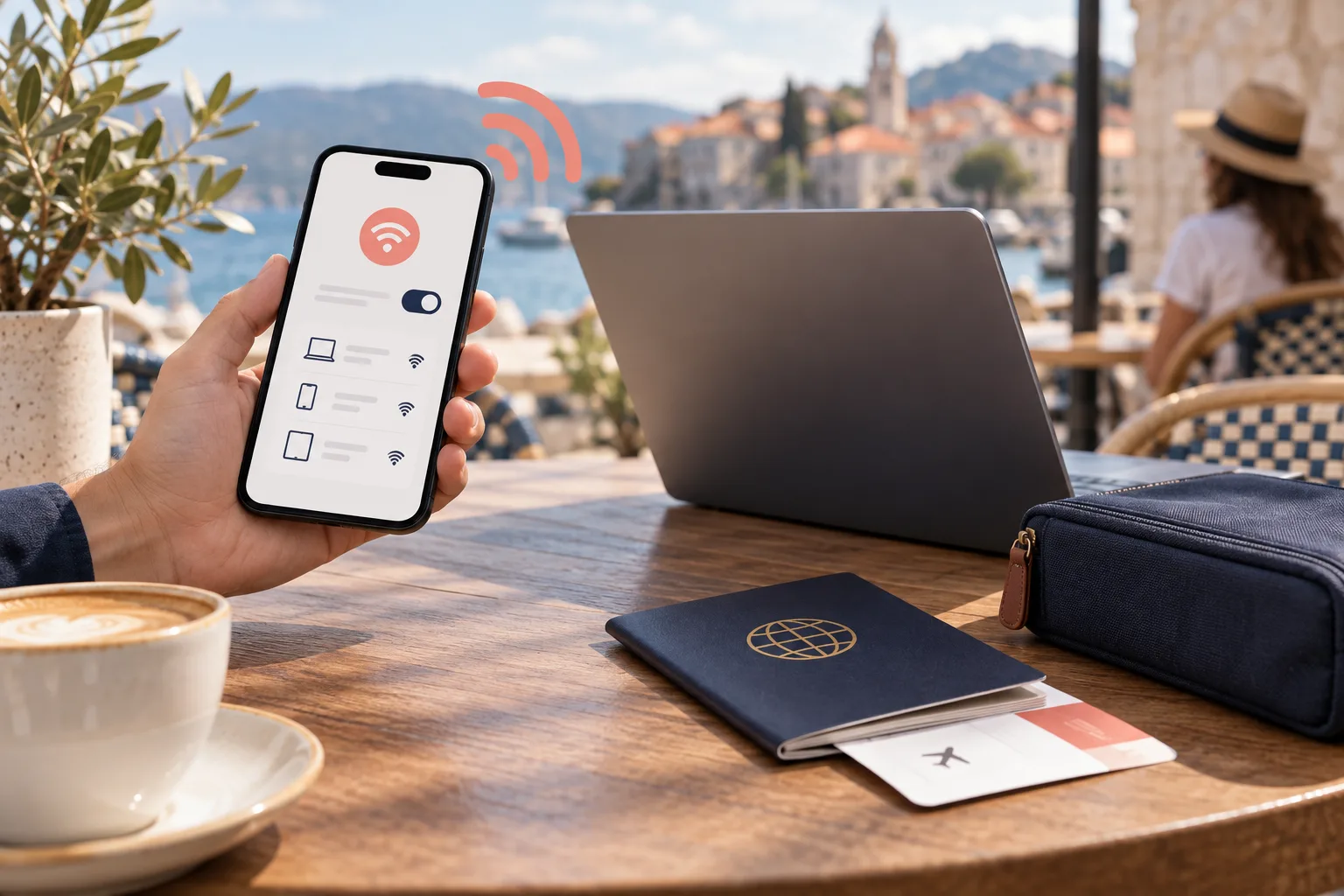
The answer to “can you use a hotspot with a travel eSIM?” is usually yes when the phone supports tethering and the provider allows it on that plan. An eSIM is a way to install a mobile line; it does not by itself promise hotspot access. Confirm the provider’s terms, make the travel eSIM the phone’s mobile-data line, turn on Personal Hotspot or the Android hotspot control, then test with one other device before you open a laptop full of updates.
Check tethering support first. On iPhone, select the travel eSIM under Cellular Data, then open Personal Hotspot. On Android, select the travel eSIM as the preferred data SIM, then use the hotspot control. Keep the home line’s mobile data off when you want to avoid accidental roaming, and watch the travel plan’s data allowance.
1. Check whether the travel plan allows tethering
Look for “hotspot”, “tethering” or “Personal Hotspot” in the plan’s terms and setup instructions. Some data plans allow a phone to browse but restrict sharing the connection. Others allow it but apply a different speed, data limit or fair-use rule. A plan that works perfectly on the phone can still refuse a laptop connection.
Do not infer support from the word “unlimited”, from the eSIM format or from another traveler’s experience. The relevant combination is your exact provider, plan, destination network and device. Save the provider’s support page before you leave Wi‑Fi. If the terms are silent, ask the provider rather than buying based on an assumption.
2. How to use an eSIM hotspot on iPhone
On iPhone, first install the travel line over dependable Wi‑Fi. Open Settings → Cellular or Mobile Service and tap the travel line. Confirm it is turned on, then choose it under Cellular Data. If the phone offers Allow Cellular Data Switching, turn it off during the first test so the home line cannot quietly become the data source.
Select the travel data line
Go to Settings → Cellular → Cellular Data and choose the travel eSIM. On a Dual SIM iPhone, Apple notes that Personal Hotspot uses the line selected for cellular data, so this choice matters.
Open Personal Hotspot
Go to Settings → Personal Hotspot, or Cellular → Personal Hotspot depending on the iOS layout. Turn on Allow Others to Join and set a password that is easy to type but not obvious.
Join from the second device
On the laptop or tablet, select the iPhone’s hotspot name and enter the password. Keep the devices close for the first test, open a small page and verify that the traffic is actually using the travel line.
Apple describes Personal Hotspot as sharing an iPhone’s cellular connection over Wi‑Fi, Bluetooth or USB, but carrier support still matters. If the hotspot option is missing or the second device connects without internet, do not jump straight to deleting the eSIM. Check the selected data line, provider terms and carrier support first.
For the surrounding line setup, use our guide to how to use an eSIM for travel. If the travel line itself has no data, see eSIM not working.
3. How to use an eSIM hotspot on Android
Android menu names vary by manufacturer and software version. On many phones, start in Settings → Network & internet or Connections → Hotspot & tethering. Before enabling the hotspot, open SIM or SIM manager settings and choose the travel eSIM as the preferred SIM for mobile data. Search Settings for “hotspot”, “tethering” or “SIM” if the route differs.
Turn on Wi‑Fi hotspot, review the network name and password, and connect one device. Keep automatic data switching off while you diagnose the setup. If your phone offers a choice of Wi‑Fi band or compatibility mode, use the default first; change one setting at a time if an older laptop cannot join. Do not invent an APN value—use the provider’s exact instruction or ask support.
4. Make a hotspot use less travel eSIM data
A laptop can consume a travel plan faster than a phone because it may sync cloud files, download operating-system updates, refresh photo libraries or autoplay video. Before tethering, set the connection as metered if the operating system offers that option. Pause automatic backups and updates, close streaming tabs and use a lightweight browser task to confirm the line works.
| Need | Lower-risk starting choice |
|---|---|
| Maps or a short message | Connect briefly, complete the task and turn the hotspot off. |
| Work session | Set the laptop connection as metered and pause large syncs before joining. |
| Video call | Check plan rules and remaining data first; keep a fallback Wi‑Fi option if the call is important. |
| Multiple devices | Connect only the devices you need and review the phone’s hotspot list regularly. |
Hotspot also uses battery. Keep the phone charged when practical, place it where it can receive a stable signal and turn sharing off after the task. A weak network can make the phone work harder while a connected laptop keeps retrying requests.
5. If the eSIM hotspot does not work
The hotspot switch is missing: check whether the current line or carrier allows Personal Hotspot. Confirm the travel line is selected for cellular data and read the provider’s setup note.
The second device sees the network but has no internet: test the phone itself first. If the phone also has no data, follow the data-line and roaming checks in our troubleshooting guide. If only tethering fails, check plan restrictions and restart both devices.
The home carrier is being used: re-open the mobile-data selector and disable automatic data switching while testing. Signal bars do not tell you which line is carrying internet traffic.
It works but is very slow: check destination coverage, the plan’s speed policy and the phone’s signal. Move to a clearer location before changing advanced settings. Do not delete a working eSIM profile to repeat installation unless the provider tells you to.
After each change, run one small test and write down what happened. This avoids changing the data line, roaming, APN and hotspot settings all at once.
Official checks
For the iPhone behavior described above, verify the current device and carrier guidance in these official Apple references:
- Use Personal Hotspot on iPhone — connection methods and the selected cellular-data line.
- Set up Personal Hotspot — provider support and the Allow Others to Join control.
- If Personal Hotspot is not working — practical troubleshooting checks.
Travel eSIM hotspot FAQ
Can you hotspot with an eSIM?
Often, yes, if the phone supports hotspot and the eSIM provider and plan allow tethering. The eSIM format itself does not guarantee hotspot access.
How do I use an eSIM hotspot on iPhone?
Turn on the travel line, select it under Settings → Cellular → Cellular Data, then open Personal Hotspot and allow the other device to join. On a Dual SIM iPhone, confirm which line is selected for data.
Why does my travel eSIM have data but no hotspot?
The plan may restrict tethering, the carrier may not provision Personal Hotspot, the wrong line may be selected for data, or the phone may need a restart or provider-specific setting. Check the plan before changing APN values.
Does a hotspot use more travel eSIM data?
It can. A laptop or tablet may load larger pages, sync files and update apps in the background. Watch the travel plan’s data usage and set limits on the connected device.
Guide note: Hotspot availability is plan- and device-dependent. Confirm the exact terms for the travel eSIM and phone you will use before you rely on tethering as your only connection.
If you are asking can you hotspot with eSIM, check the provider’s tethering terms before you depend on the connection.